Jira migration involves moving data, configurations, workflows, and users from one Jira instance to another.
This guide covers three migration approaches—Big Bang, project-by-project, and live migration—explains the risks of each, and shows why live migration with real-time synchronization is the safest option for most teams.
Important terminology note: Atlassian renamed “issues” to “work items” and “projects” to “spaces” in Jira Cloud. This guide uses the updated terminology throughout.
Key Takeaways
- Three migration approaches exist: Big Bang (fast but risky), project-by-project (gradual but complex), and live migration (recommended for zero downtime).
- Big Bang migrations fail frequently because of missed customizations, inadequate testing, and no rollback option once teams start using the new system.
- Live migration eliminates downtime by keeping both instances synchronized while teams gradually transition.
- Migration costs include more than tools: factor in staff training, workflow recreation, testing, and potential productivity dips during transition.
- Security during migration matters: choose tools with ISO certification, encryption, and role-based access control to protect sensitive project data.

Atlassian Data Center End of Life: What You Need to Know
Atlassian announced that Data Center products, including Jira Data Center, will reach end of life on March 28, 2029.
Key Dates
- March 30, 2026: No new Data Center license sales for new customers
- March 30, 2028: Existing customers can no longer purchase licenses or expansions
- March 28, 2029: All Data Center licenses expire and become read-only
What This Means
After March 28, 2029, Data Center instances become read-only with no technical support or security updates. Organizations running Data Center must plan migration to Jira Cloud or alternative platforms.
Starting migration planning now rather than waiting until deadlines approach provides time for proper testing, staff training, and gradual transitions. Last-minute migrations under deadline pressure are exactly the high-risk Big Bang scenarios that cause problems.
What Is Jira Migration?
Jira migration is the process of transferring work items, configurations, workflows, custom fields, user permissions, and historical data from one Jira instance to another.
Migrations happen for several reasons: consolidating multiple instances after mergers, moving from on-premises to cloud infrastructure, splitting instances for regulatory compliance, or switching platforms entirely (such as moving from Jira to Azure DevOps or ServiceNow).
A successful migration preserves data integrity, maintains workflow continuity, and minimizes disruption to teams who depend on Jira for daily operations. The complexity varies based on instance size, customization level, third-party app dependencies, and the migration approach you choose.
Jira Migration Approaches Compared
Big Bang Migration
Big Bang migration moves everything in a single operation. All data transfers at once, and access redirects to the new system immediately.
When it works: Small teams with fewer than 50 users and minimal customizations. Simple configurations where testing can cover all scenarios.
Why it fails: Preparation time gets underestimated. Teams discover missing functionality only after the migration completes. No rollback option exists once users start creating new work items. Downtime affects everyone simultaneously.
Project-by-Project Migration
This approach migrates individual projects incrementally rather than the entire instance at once.
When it works: Organizations wanting gradual transitions. Teams with independent projects that don’t share many cross-project dependencies.
Why it’s complicated: Access to each project stops during its migration window. Cross-project reporting breaks until all projects move. Teams operate in two systems simultaneously, creating confusion about where to log updates.
Live Migration with Real-Time Synchronization
Live migration uses synchronization tools to keep both instances updated while teams transition gradually.
When it works: Enterprise teams who can’t afford downtime. Complex environments with extensive customizations. Organizations that need time to validate the new system while keeping production running.
Why it’s recommended: Teams choose when to switch. Both instances remain operational throughout. Issues discovered in the new system don’t block work—teams continue using the original until problems are resolved. Rollback is always possible.
Migration Approach Comparison Table
| Factor | Big Bang | Project-by-Project | Live Migration |
| Downtime | Hours to days | Per-project windows | None |
| Risk Level | High | Medium | Low |
| Rollback Option | No | Limited | Yes |
| Team Disruption | Significant | Moderate | Minimal |
| Best For | Small teams (<50 users) | Medium teams | Enterprise teams |
| Typical Timeline | 1-2 days | 2-8 weeks | 2-6 weeks |
| Testing Flexibility | Limited | Moderate | High |
Why Jira Migrations Fail
Underestimating Preparation Time
Teams assume migration is primarily a technical task. In reality, ensuring the new system meets operational requirements takes significantly longer than the data transfer itself. Custom fields need recreation. Workflows require adaptation. Permissions need verification. Third-party app compatibility must be confirmed.
Missing Customizations
Testing in a staging environment never catches everything. Users discover missing functionality only when they try to complete their actual work. By then, the Big Bang had already happened. The dissatisfied team either waits for fixes, invents workarounds, or loses productivity.
No Rollback Path
Once new work items exist in the destination system, rolling back becomes nearly impossible. Any blocking issues discovered post-migration must be resolved while teams struggle with a compromised system. A live migration approach avoids this trap entirely.
Inadequate User Training
Migration changes how teams work, even when functionality remains identical. New navigation patterns, different interfaces, and altered workflows require adjustment time. Rushing this transition creates frustration and productivity losses that compound over weeks.
Why Live Migration Is the Better Approach
Live migration removes the high-stakes gamble of Big Bang approaches. Instead of hoping everything works perfectly on the first attempt, teams can:
- Validate gradually: Move a pilot project first. Let power users identify issues before the broader rollout. Fix problems without impacting everyone.
- Maintain productivity: Both instances stay operational. Teams work wherever they’re most comfortable while the new system gets refined.
- Roll back safely: If the destination environment has unexpected problems, teams simply continue using the source system. No data loss. No emergency fixes under pressure.
- Reduce staff frustration: Incremental change is easier than an overnight transformation. Teams adopt the new system at their own pace rather than being forced into an unfamiliar environment.
Synchronization tools like Exalate keep work items updated across both instances in real time. Users find the same data regardless of which system they access. When the new configuration is validated and teams are comfortable, the old instance can be retired.
| Feature | Big Bang | Project-by-Project | Live Migration |
| Downtime | Yes (hours to days) | Yes (per project) | No |
| Risk Level | High | Medium | Low |
| Rollback Option | No | Limited | Yes |
| Team Impact | High disruption | Medium disruption | Minimal disruption |
| Best For | Small teams (<50 users) | Medium teams | Enterprise teams |
| Timeline | 1-2 days | 2-8 weeks | 2-6 weeks |
When Should You Migrate Jira?
Consolidating Multiple Instances
After mergers or acquisitions, organizations often inherit multiple Jira instances. Different departments may have purchased separate instances before IT established standards. Consolidation simplifies administration, provides a unified view across teams, and reduces licensing costs.
Moving to Cloud Infrastructure
Atlassian’s strategic focus on cloud products means new features often appear in Jira Cloud before (or instead of) on-premises versions. Organizations moving to the cloud benefit from automatic updates, reduced infrastructure maintenance, and elastic scalability.
Splitting Instances for Compliance
Some organizations need to isolate sensitive projects due to regulatory requirements. Healthcare, finance, and government contractors may need separate instances with different security configurations or data residency requirements.
Switching Platforms
Migration isn’t limited to Jira-to-Jira moves. Organizations sometimes switch between platforms entirely: Jira to Azure DevOps for development teams, Jira to ServiceNow for IT operations, or consolidating from multiple tools into a single platform. These cross-platform migrations benefit from synchronization tools that support both source and destination systems.
What Does a Jira Migration Cost?
Direct Costs
- Synchronization tools: Exalate’s Professional plan starts at $6 per month per system. Enterprise pricing varies based on requirements. Request custom migration pricing.
- Atlassian Cloud Migration Assistant: Free for basic migrations, but limited to Atlassian-to-Atlassian moves with standard configurations.
Time Investment
- Small instance (<1,000 work items): 1-2 weeks
- Medium instance (1,000-10,000 work items): 2-4 weeks
- Large instance (>10,000 work items): 4-8 weeks
Hidden Costs
- Staff training on new system: 2-5 days per team
- Custom workflow recreation: 1-3 days per workflow
- Testing and validation: 1-2 weeks minimum
- Productivity dip during transition: 10-20% for 2-4 weeks
- Third-party app re-evaluation and licensing

Calculate time and money savings from automated bidirectional sync.
Features to Consider When Choosing a Migration Tool
Real-Time Synchronization
The ability to keep both source and destination instances synchronized during the migration period eliminates the false choice between speed and safety. Real-time sync means teams can work in either system while migration proceeds.
Selective Data Control
Migration tools should let you choose exactly what migrates. Some organizations want complete work item history, including all comments, attachments, and status changes. Others prefer clean-slate migrations that transfer only current state data. The tool should support both approaches.
Custom Field Mapping
Jira instances rarely have identical configurations. Custom fields on the source need mapping to appropriate fields on the destination. Look for tools that handle field type differences and allow transformation logic during sync.
Security Certifications
Migration involves transferring potentially sensitive project data. Choose tools with proper security credentials, including ISO 27001 certification, encryption of data in transit and at rest, and role-based access control. Verify compliance with your organization’s security requirements. Visit the Exalate Trust Center for detailed security documentation.
Cross-Platform Support
If your migration involves switching platforms (not just Jira versions), the tool must support both source and destination systems. Exalate connects Jira Cloud with Azure DevOps, ServiceNow, Salesforce, Zendesk, Freshdesk, Freshservice, GitHub, Asana, and other platforms.
Scripting Flexibility
Complex migrations often require conditional logic: sync only certain work item types, transform field values during transfer, and apply different rules based on project or status. Groovy-based scripting provides the flexibility to handle edge cases that rigid mapping tools can’t accommodate.
AI-Assisted Configuration
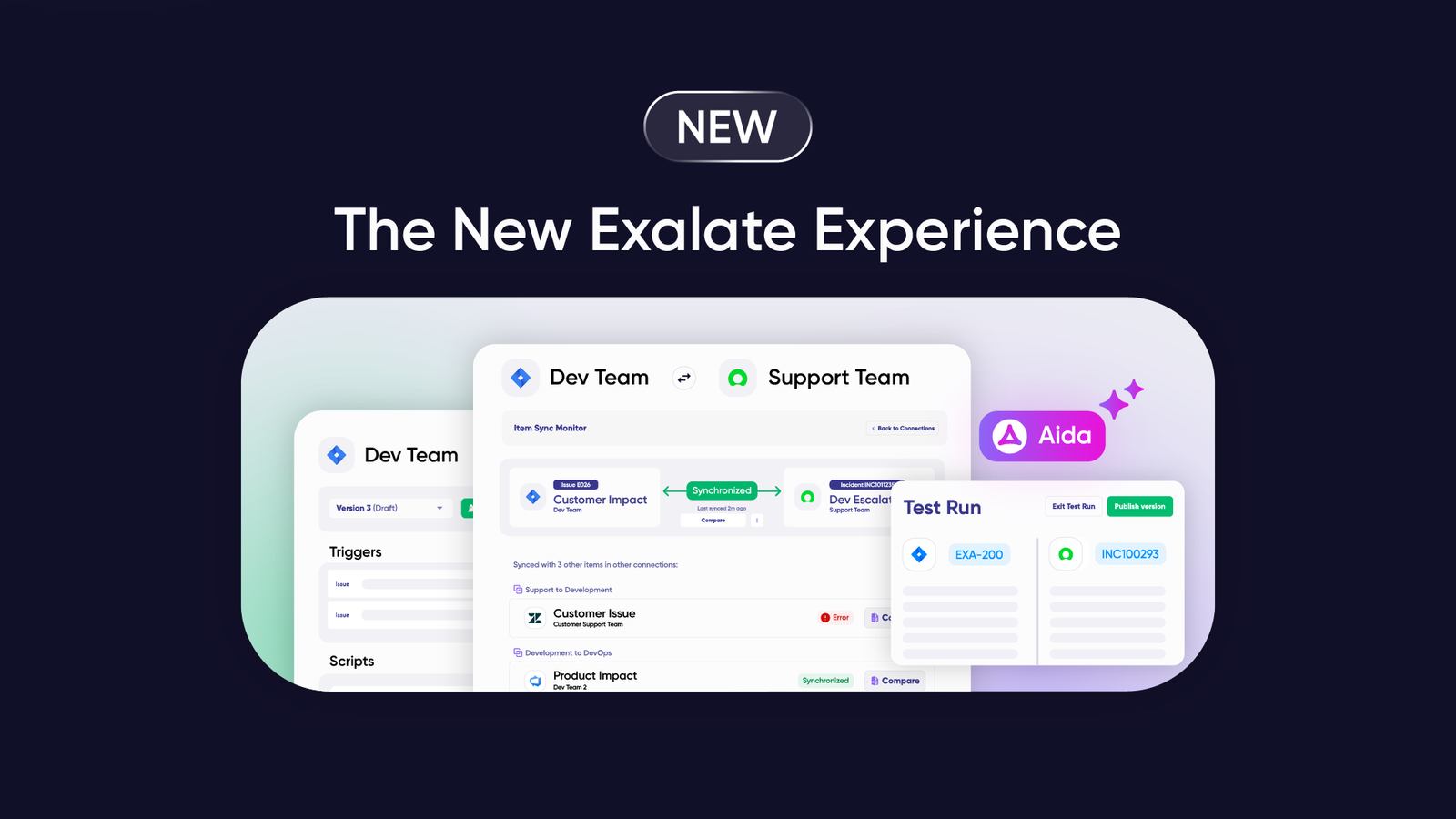
Aida, Exalate’s AI-assisted configuration feature, helps teams create sync rules without deep scripting knowledge. Describe what you need in plain language, and Aida generates the appropriate configuration, reducing setup time and making powerful customizations accessible to non-developers.
Validation and Testing
Before running production migrations, you need ways to test configurations safely. Look for features like TestRun that let you validate sync rules against sample data before applying them to your entire instance.
Jira Migration Tools: Native and Third-Party Options
Atlassian Cloud Migration Assistant (Free)
Atlassian’s native tool for moving from Server or Data Center to Jira Cloud. Handles basic migrations with user mapping, project selection, and configuration transfer.
Best for: Straightforward Atlassian-to-Atlassian migrations with standard configurations.
Limitations: No cross-platform support. Limited transformation capabilities. Requires downtime for each migration batch.
Exalate
Bi-directional synchronization platform supporting live migrations between Jira instances or cross-platform moves to Azure DevOps, ServiceNow, Salesforce, and others.
Best for: Enterprise migrations requiring zero downtime, cross-platform migrations, or scenarios needing custom transformation logic. Organizations require ISO 27001-certified tools with full scripting control.
Key capabilities: Real-time synchronization, Aida AI-assisted configuration, Groovy scripting for complex mappings, TestRun validation, support for Jira Cloud plus Azure DevOps (including Azure DevOps Server), ServiceNow, Salesforce, Zendesk, Freshdesk, Freshservice, GitHub, and Asana.
Backbone Work Sync
Synchronization tool specifically for keeping Jira instances in sync during phased migrations.
Best for: Organizations using phased migration approaches who need both instances updated throughout the transition period.
OpsHub Integration Manager
Enterprise migration platform with incremental migration capabilities.
Best for: Large enterprises with complex migration requirements needing professional services support.
CSV Import (Manual)
Jira’s built-in CSV import allows manual data migration through exported files.
Best for: Simple, one-time data transfers where real-time sync isn’t required.
Limitations: Labor-intensive for large instances. No ongoing synchronization. Relationships between work items may not be preserved correctly.
Practical Use Cases for Jira Migration
Post-Merger Instance Consolidation
Challenge: Two companies merge, each with its own Jira instance. Both instances have years of historical data, custom workflows, and active projects. Management wants a unified view across all teams.
Solution: Use live migration to sync both instances to a new consolidated destination. Keep source instances operational while teams validate the combined environment. Gradually retire source instances as teams confirm their data and workflows transferred correctly.
Real-World Application: A software company acquires a competitor. Rather than forcing immediate migration, they synchronize both Jira instances to a new environment while keeping the original instances running. Development teams continue working without interruption. After three weeks of parallel operation, all stakeholders confirm the consolidated instance works correctly. Source instances are archived.
Compliance-Driven Instance Separation
Challenge: A healthcare software company needs to isolate patient-related development work items from general product development to meet HIPAA requirements.
Solution: Create a separate Jira instance with enhanced security controls for healthcare projects. Migrate relevant work items while maintaining references to related general development items. Configure ongoing sync for work items that cross boundaries.
Real-World Application: The compliance team identifies 12 projects containing patient data references. These projects migrate to a new instance with additional access controls, encryption requirements, and audit logging. Cross-project dependencies sync through secure connections with field-level filtering to exclude sensitive data from non-compliant environments.
Cloud Migration Under Deadline Pressure
Challenge: An organization running Jira Data Center must move to Cloud before the 2029 end-of-life date. The instance has 50,000+ work items, extensive customizations, and 15 integrated third-party apps.
Solution: Start migration 18 months before the deadline. Begin with non-critical projects to learn the process and identify issues. Progressively migrate higher-priority projects while maintaining sync between environments. Use the extended timeline to address app compatibility issues and retrain users.
Platform Switch: Jira to Azure DevOps
Challenge: A development team acquired through a merger uses Azure DevOps while the parent company uses Jira. Rather than forcing developers to switch tools, leadership wants both teams to collaborate seamlessly.
Solution: Configure bidirectional sync between Jira and Azure DevOps. Work items created in either system appear in both. Status updates, comments, and attachments sync automatically.
Real-World Application: The acquired team continues using Azure DevOps for development while management views all work in Jira dashboards. When parent company stakeholders comment on requirements in Jira, developers see those comments in Azure DevOps. When developers update status or add technical notes, Jira reflects those changes. Neither team changes its preferred tool, but collaboration works seamlessly.
MSP Multi-Tenant Migration
Challenge: A managed service provider supports 20 clients, each with separate Jira instances. They want to consolidate client management into a single platform while maintaining strict data isolation between clients.
Solution: Configure independent connections for each client’s Jira instance to the MSP’s central management platform. Each connection has isolated sync rules, ensuring Client A’s data never appears in Client B’s view.
Real-World Application: The MSP creates a master Jira instance with 20 separate projects, one per client. Each client’s external Jira connects only to their specific project. Work items sync bidirectionally with full isolation. The MSP gains unified visibility across all clients while each client sees only their own data in their original instance.
Common Jira Migration Problems and Fixes
Custom Fields Not Migrating
Custom fields exist on the source but don’t appear on the destination.
Fix: Create matching custom field definitions on the destination before migration. Field types must be compatible (you can’t map a text field to a numeric field). Configure explicit field mappings in your sync rules.
Attachments Missing After Migration
Work items transfer successfully, but attachments don’t appear.
Fix: Check file size limits on the destination instance—Jira Cloud has different limits than Data Center. Large attachments may need separate transfer or compression. Verify sync rules include attachment handling.
User Accounts Not Matching
Work items migrate, but the assignee and reporter fields show incorrect users or generic accounts.
Fix: Create user mapping before migration. Match accounts by email address when possible. Create placeholder accounts for users who won’t have destination access. Configure sync rules to handle unmapped users appropriately.
Work Item Links Breaking
Links between work items are not preserved during migration.
Fix: Use migration tools that handle link relationships. Migrate linked items together rather than separately. Verify link types exist on the destination instance.
Workflow Status Mismatches
Source and destination use different workflow statuses, causing sync failures.
Fix: Map statuses explicitly in sync configuration. Create any missing statuses on the destination before migration. For statuses that don’t have direct equivalents, define transformation rules.
Migration Running Slowly
Large instance migration takes longer than expected, extending the downtime window.
Fix: Migrate during off-peak hours. Reduce batch sizes in the sync configuration. Archive completed or inactive projects before migration to reduce volume. Consider phased migration to spread the load.
Conclusion
Jira migration complexity depends on your approach. Big Bang migrations promise speed but deliver risk: one chance to get everything right, no rollback option, and guaranteed downtime. Live migration with real-time synchronization eliminates these risks by keeping both instances operational while teams transition gradually.
With Atlassian’s Data Center end-of-life approaching in 2029, organizations running on-premises Jira should start migration planning now. Early preparation provides time for proper testing, staff training, and gradual transitions—avoiding the high-stakes scramble of last-minute migrations.
Choose your migration approach based on organizational needs: tolerance for downtime, customization complexity, team size, and timeline flexibility. For most enterprise scenarios, live migration with synchronization tools like Exalate provides the safest path from source to destination.
Ready to plan your migration? Start a 30-day free trial of Exalate to test synchronization with your specific configuration and validate your migration strategy before committing.
Frequently Asked Questions
Can I migrate from Jira Data Center to Jira Cloud?
Yes. With Atlassian ending Data Center support in March 2029, many organizations are planning this transition. Exalate supports migration from Data Center to Cloud while maintaining data synchronization throughout the process. The live migration approach means teams continue working without downtime.
What data can be migrated between Jira instances?
Most migration tools support: work items (summary, description, type, priority, status), custom fields, comments, attachments, work item links, sprint and epic associations, workflows and statuses, user assignments, and labels. Historical data, including change history and timestamps, can typically be preserved depending on the tool capabilities.
Can I migrate only specific projects or work items?
Yes. Modern migration tools support selective migration using filters. You can migrate specific projects, work items matching certain criteria (JQL queries in Jira), or exclude items based on labels or status. This flexibility enables phased migrations and allows you to leave archived or obsolete data behind.
Can I migrate work item history and change logs?
Yes, most enterprise migration tools preserve historical data, including comments, status changes, and modification timestamps. Configure your sync rules to include history if needed, or exclude it for faster, cleaner migrations. Preserving history increases migration time and storage requirements but maintains full audit trails.
How do I handle different workflows between source and destination?
Map workflows in your migration configuration. Create any statuses that don’t exist on the destination before migration. For statuses without direct equivalents, define transformation rules that specify how source statuses translate to destination statuses. Complex workflow transformations may require scripting logic.
What if I need to migrate to a non-Jira platform?
Cross-platform migrations are common. Exalate supports migration and ongoing synchronization between Jira and Azure DevOps, ServiceNow, Salesforce, Zendesk, Freshdesk, Freshservice, GitHub, and Asana. Configure the connection between source and destination, define field mappings, and run the migration using the same synchronization approach.
Should I use Atlassian’s native migration tools or third-party options?
Atlassian’s Cloud Migration Assistant works well for straightforward Jira-to-Jira Cloud moves with standard configurations and acceptable downtime windows. Choose third-party tools like Exalate when you need: zero-downtime migration, cross-platform support, complex data transformations, or ongoing synchronization between environments.
How do I prepare my team for migration?
Start with communication: share timelines, explain what changes and what stays the same, and set expectations for the transition period. Identify power users who can validate the new environment early. Provide training on new interfaces or changed workflows. Plan for a productivity dip during adjustment and don’t schedule migration during critical business periods.
Can I keep both instances running after migration?
Yes. Live migration approaches maintain synchronization between instances indefinitely. Some organizations keep both instances operational for months after migration as a safety net. When you’re confident the destination works correctly, you can stop synchronization and archive or decommission the source instance.
What security considerations apply to Jira migration?
Migration involves transferring potentially sensitive data. Choose tools with ISO 27001 certification, encryption of data in transit and at rest, and role-based access control. Verify the migration tool meets your organization’s security policies. For highly regulated industries, confirm compliance with specific requirements (HIPAA, SOC 2, GDPR). Review the tool vendor’s security documentation; Exalate’s Trust Center provides detailed security information.
How do I validate that the migration completed successfully?
Compare work item counts between source and destination. Verify sample work items transferred correctly with all fields, comments, and attachments. Test workflows by transitioning items through their lifecycle. Confirm user assignments and permissions work as expected. Have key users validate their projects before declaring migration complete.
Recommended Reads:
- A guide to Jira workflow best practices (with examples)
- Jira to Jira Integration: The Comprehensive Guide to Jira Sync
- Jira Azure DevOps Integration: The Complete Step-by-Step Guide
- Jira Salesforce Integration: How to Set up a Two-Way Sync between Different Teams
- Jira ServiceNow Integration: How to Connect Jira and ServiceNow in 5 Steps
- Freshdesk Jira Integration in the Age of Customer Satisfaction
- How to Set up an End-to-End ServiceDesk Plus Jira Integration